This article explains how to create a log from a nMETOS station and send it to METOS Support when requested. Providing a correct log helps our support team diagnose issues faster and reduce resolution time.
Important Notes Before You Start
Before generating and sending a transmission log, please ensure:
Your nMETOS is running the latest firmware
The station battery is charged to approximately 3.6V
You follow all steps exactly as described
⚠️ Logs sent without the required settings may delay troubleshooting.
⚠️ The nMETOS battery 3.6V is not rechargeable! - For more information, refer to Batteries and Supercapacitors (supercap) User Guide - LINK
Prerequisites
Before you start, ensure you have:
A computer with PI Service Terminal installed
A micro USB cable that supports data transfer
Physical access to the nMETOS station
A charged battery (approx. 3.6V)
No jumper is required for this operation
Step 1: Install PI Service Terminal
Download the latest release of PI Service Terminal - LINK
Install the application - LINK
Launch the application on your computer
Step 2: Connect the nMETOS Station
Plug the nMETOS station into your computer using a USB cable.
➡️ The USB port is located on the bottom of the board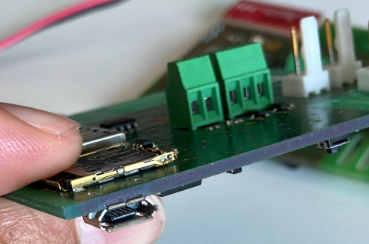
Turn on the nMETOS station
In PI Service Terminal, ensure the following options are enabled:
✅ Save to Log
✅ Timestamp
Open Menu → Settings and activate Advanced Mode
Password:
PIST2022
⚠️ These settings are essential for the METOS Support team to analyze the log correctly.
Click Connect
Step 3: Wait for the Connection to Complete
- After startup, the station will initiate communication automatically
Wait until the process finishes
The connection process may take several minutes
➡️ If nothing appears on the screen:
Disconnect the battery, solar panel and the USB cable
Wait 30 seconds
Reconnect both and repeat the steps above
Step 4: Retrieve and Send the Log
In PI Service Terminal, open Advanced Functions from the left menu
Select nMETOS
Tick Auto-generate nMETOS Logs
Wait while the log is generated
Log Details
The log is automatically saved when Save to Log is enabled
The file location is displayed in the status bar of PI Service Terminal
To send the log
You can send the log in one of the following ways:
Open the folder shown in the status bar or
Click Send in PI Service Terminal
Fill in the required fields
Send the log via email
Common Issues & Solutions
❌ No COM Port Appears
Check the following:
Battery voltage is approximately 3.6V
Battery cable is properly connected
The USB cable supports data transfer (some cables are power-only)
Suggested Solutions:
- Close and relaunch PI Service Terminal
- Reset PI Service Terminal settings:
- Go to Menu → Settings → Reset All Settings
- Replace the USB cable
❌ USB Connecting and Disconnecting Continuously (the screen may display ddd)
Check the following:
- Check the battery system:
- Verify connection and tension - LINK
Suggested Solutions:
- Replace the battery and/or supercapacitor if necessary
Need Help?
If you encounter issues during this process or are unsure whether your log was created correctly, please SUBMIT A TICKET to the METOS Support Center and include the log file in your request.
Was this article helpful?
That’s Great!
Thank you for your feedback
Sorry! We couldn't be helpful
Thank you for your feedback
Feedback sent
We appreciate your effort and will try to fix the article